
Work with Google Maps React map markers and info windows
How to add map markers and info windows to Google Maps using the Marker and AdvancedMarker components of the Google Maps React library.

In part 3 of our ongoing series on the Google Maps React component library, I'll show you how to use the <Marker/> and <AdvancedMarker/> components to add interactivity to your app.
Part 1: React Google Maps: Build with Google Maps using React
Part 2: Google Maps with React: Add a Google Map and style it
Part 3: Work with Google Maps React map markers and info windows (this article)
Part 4: How to draw shapes and polylines on your Google Map in React
Part 5: The place autocomplete widget in react-google-maps
Part 6: Places UI Kit web components in React
How to add a basic map marker using the Google Maps React component library
Map markers identify a location on a map without obscuring it. In Google Maps, they're teardrop shaped by default, but highly customizable, as you'll soon see. To add a basic map marker using the @vis.gl/react-google-maps Google Maps React component library, follow these steps:
- Import the
Markercomponent from the @vis.gl/react-google-maps library.
import {Marker} from '@vis.gl/react-google-maps';- Nest a
<Marker/>component inside your<Map/>component. Thepositionprop accepts an object withlatandlngvalues that tell the marker where to place itself on the map.
<Map
  style={{ width: "100vw", height: "100vh" }}
  defaultCenter={{ lat: 49.2827, lng: -123.1207 }}
  defaultZoom={13}
  mapId={import.meta.env.VITE_GOOGLE_MAPS_MAP_ID}
>
  <Marker position={{ lat: 49.289814, lng: -123.132561 }}></Marker>
</Map>;
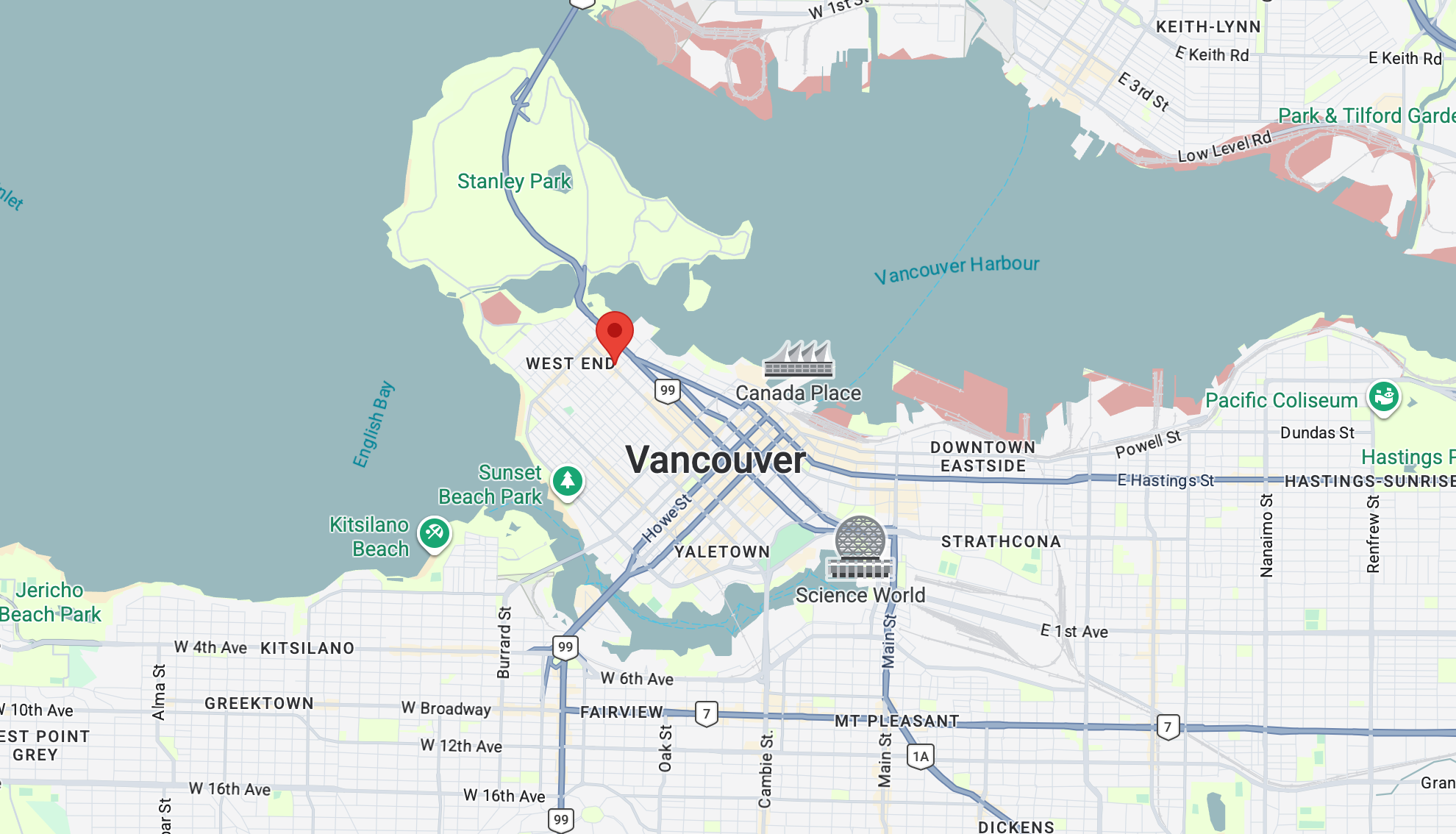
The result is the classic ballon shaped red marker. The point at the bottom anchors it to the exact location on the map specified in the position prop.
Adding an info window to Google Maps React map marker
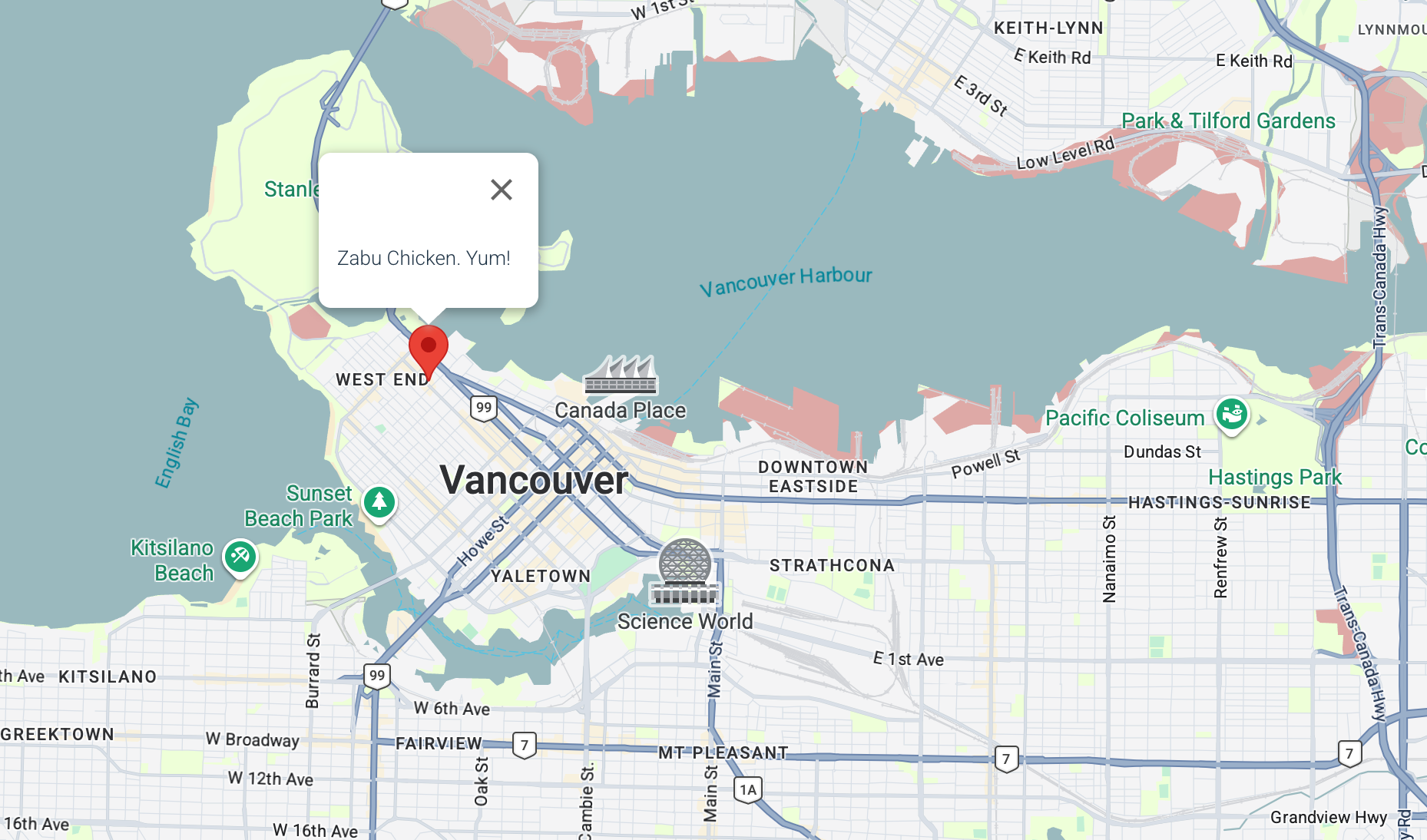
A marker alone only tells you where something is, not what it is. That's where info windows come in. Info windows are popup windows that appear above a marker when you click on them. In @vis.gl/react-google-maps, the way to anchor info windows to a map marker is by having an <InfoWindow/> component as a sibling to <Marker/>, combined with a piece of state to track whether the marker has been clicked.
- Import the
InfoWindowcomponent from @vis.gl/react-google-maps.
import { InfoWindow } from '@vis.gl/react-google-maps';- Above the return statement of
App.jsx, add a boolean state variable calledopen, initialized tofalse. When you callsetOpen(true)the info window shows, andsetOpen(false)hides it. Also, import theuseStateReact hook.
import { useState } from "react";

function App() {
  const [open, setOpen] = useState(false);

  return <div>//... Rest of App.jsx return statement</div>;
}- Use conditional rendering to selectively display the
<InfoWindow/>component alongside<Marker/>. Whenopenis set to true, the info window and any content inside it should display. But it doesn't. Why?
<Marker position={{ lat: 49.289814, lng: -123.132561 }}></Marker>
{
  open && (
    <InfoWindow>
      <p>Zabu Zabu Chicken. Yum!</p>
    </InfoWindow>
  );
}- It doesn't show because we need to wire up the event handler props
onClickandonCloseClickto toggle the info window on or off like this (code block below). When the marker is clicked,openis set totrueand the info window is displayed. When the [x] button in the top right is clicked,openis set tofalse, the app is re-rendered and the info window is hidden.
<Marker
  position={{ lat: 49.289814, lng: -123.132561 }}
  onClick={() => setOpen(true)}
></Marker>

{
  open && (
    <InfoWindow onCloseClick={() => setOpen(false)}>
      <p>Zabu Zabu Chicken. Yum!</p>
    </InfoWindow>
  );
}- Now if we run the app and try again, the info window still won't show. That's because React doesn't know where to display it. To fix this (and get the info window finally working) we need to pass a
refto the marker and use it as the anchor. Here's what I mean.
<Marker
  ref={markerRef}
  position={{ lat: 49.289814, lng: -123.132561 }}
  onClick={() => setOpen(true)}
></Marker>

{
  open && (
    <InfoWindow anchor={markerRef.current} onCloseClick={() => setOpen(false)}>
      <p>Zabu Zabu Chicken. Yum!</p>
    </InfoWindow>
  );
}
The ref prop is a special React prop. When you pass ref={markerRef} to a component, React automatically sets markerRef.current to the underlying DOM element, which in this case is the map marker you just clicked. Here's what the final result looks like:
Using the Advanced Marker element on Google Maps
The default marker gets the job done, but if you want full control over how your markers look, use <AdvancedMarker/> instead. Under the hood it's a React wrapper for Google's AdvancedMarkerElement. Style it any way you want with CSS, drop in an SVG, use a PNG, or even a photo of the location. With <AdvancedMarker/> your markers can be anything: a custom branded icon, an animated SVG, a React component showing a price tag like Airbnb does, or a photo of the location.
In this section, I'll show you three ways to style your markers:
- With custom CSS styles and HTML
- By using a
<Pin/>component (a wrapper for the PinElement) - Embedding a PNG or SVG file
But before I do so, first import the AdvancedMarker and Pin components from @vis.gl/react-google-maps.
import {AdvancedMarker, Pin} from '@vis.gl/react-google-maps';Styling Google map markers with custom CSS and HTML
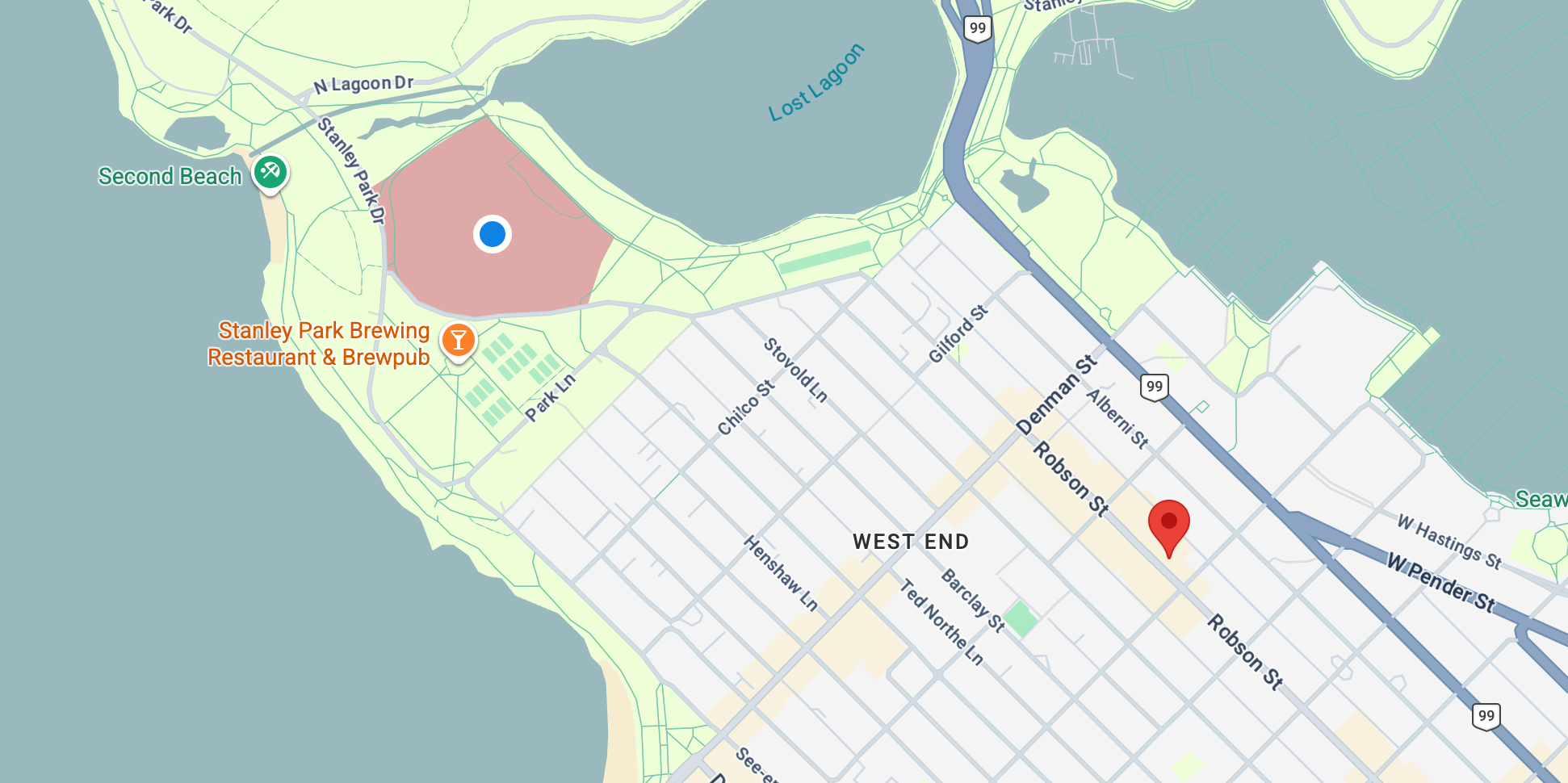
Because meaning the AdvancedMarkerElement is just a regular DOM element, it can be easily styled using HTML and CSS. For example, if you are building an asset tracking app and want to a blue dot to represent a device's real time location, you can embed a div inside <AdvancedMarker/> and style it accordingly.
<AdvancedMarker
  position={{ lat: 49.293983, lng: -123.145829 }}
  title={"Stanley Park Pitch and Putt"}
>
  <div
    style={{
      width: 16,
      height: 16,
      position: "absolute",
      top: 0,
      left: 0,
      background: "#0984e3",
      border: "4px solid #FFFFFF",
      borderRadius: "50%",
      transform: "translate(-50%, -50%)",
    }}
  ></div>
</AdvancedMarker>
Add custom Google Map markers using a Pin component
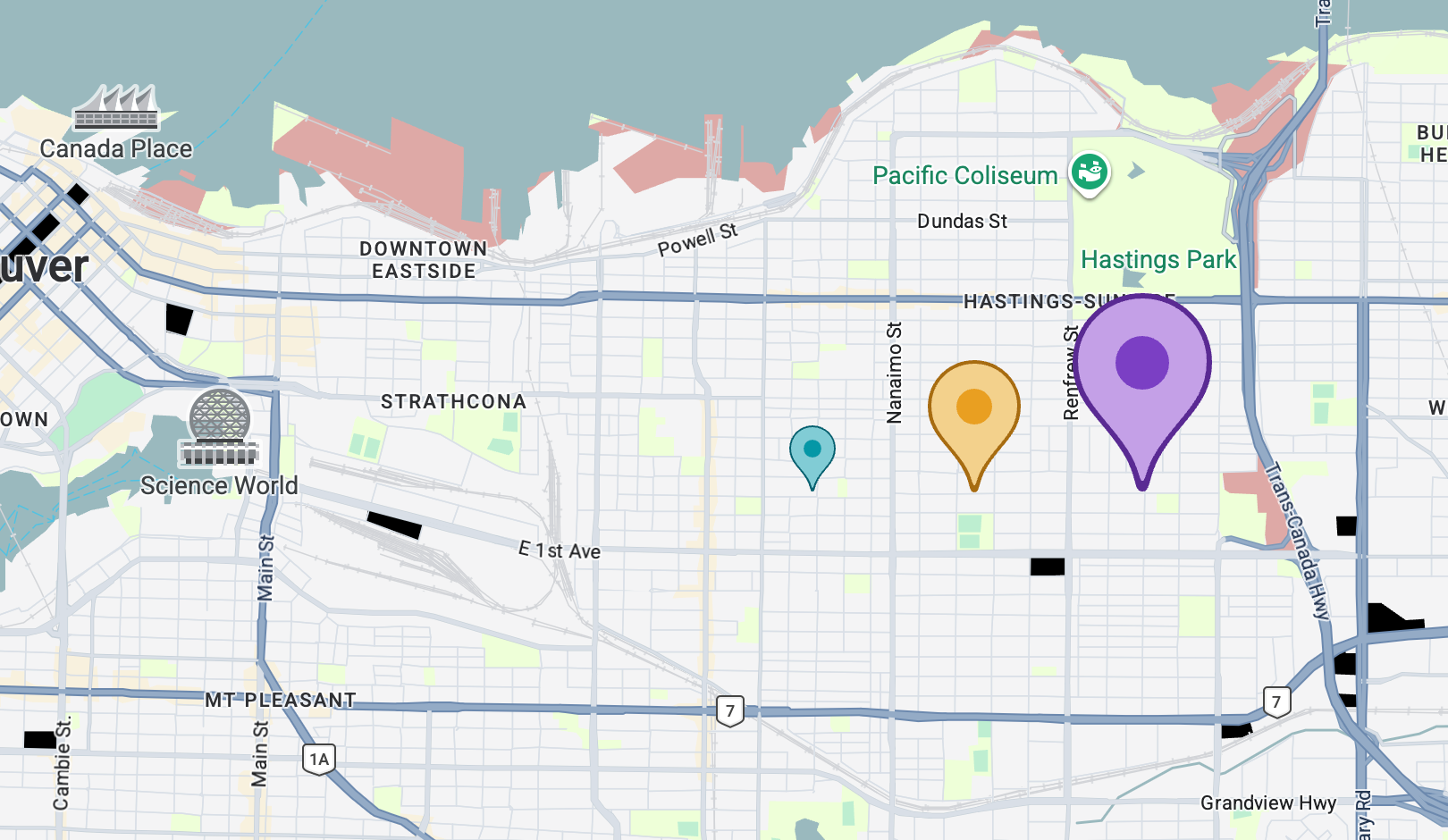
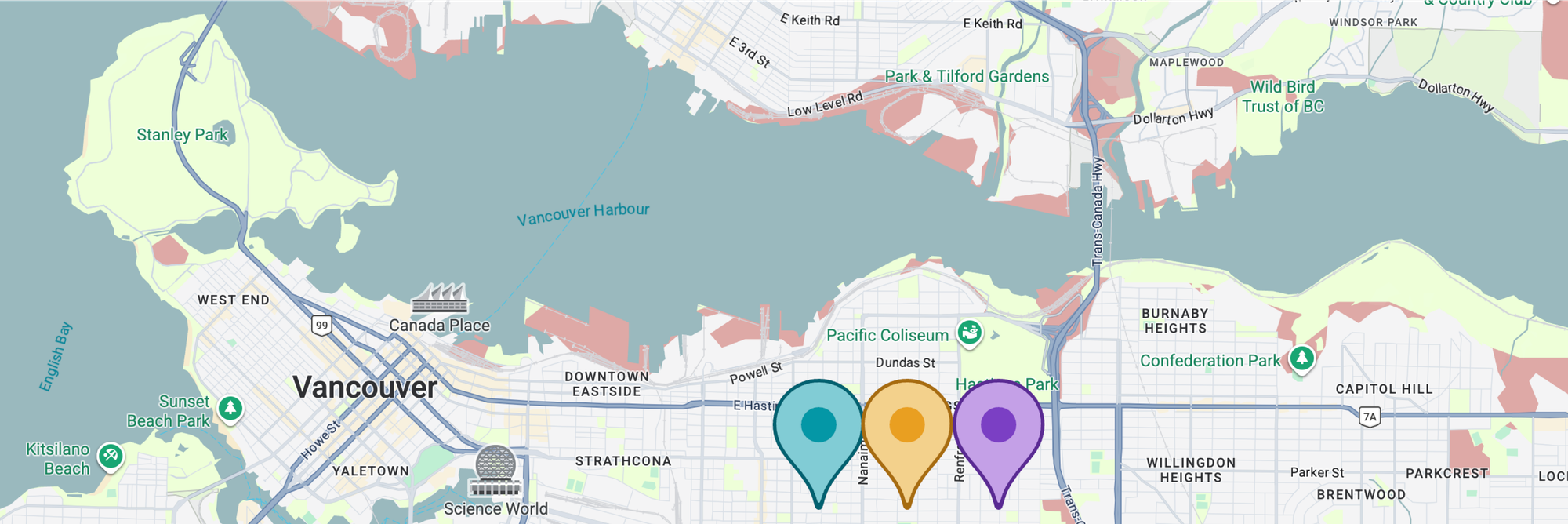
If you like how the default ballon pin looks but want to change its color, size or other attributes, consider using a <Pin/> component instead and using props to modify how it looks. The code below creates three custom markers of different colors (glyphColor, background and borderColor) and sizes (scale).
<div>
  <AdvancedMarker
    position={{ lat: 49.272329, lng: -123.062195 }}
    title={"teal"}
  >
    <Pin
      glyphColor={"#0097A7"}
      background={"#80CDD4"}
      borderColor={"#006070"}
      scale={1.0}
    ></Pin>
  </AdvancedMarker>

  <AdvancedMarker
    position={{ lat: 49.272329, lng: -123.050823 }}
    title={"Yellow"}
  >
    <Pin
      glyphColor={"#E8A020"}
      background={"#F4D08C"}
      borderColor={"#A86C10"}
      scale={2.0}
    ></Pin>
  </AdvancedMarker>

  <AdvancedMarker
    position={{ lat: 49.272329, lng: -123.039029 }}
    title={"Purple"}
  >
    <Pin
      glyphColor={"#7B3FC4"}
      background={"#C4A0E8"}
      borderColor={"#5A2A94"}
      scale={3.0}
    ></Pin>
  </AdvancedMarker>
</div>;
background is the main body color of the pin.
borderColor is the color of the pin's border.
glyphColor is the color of the dot in the center.
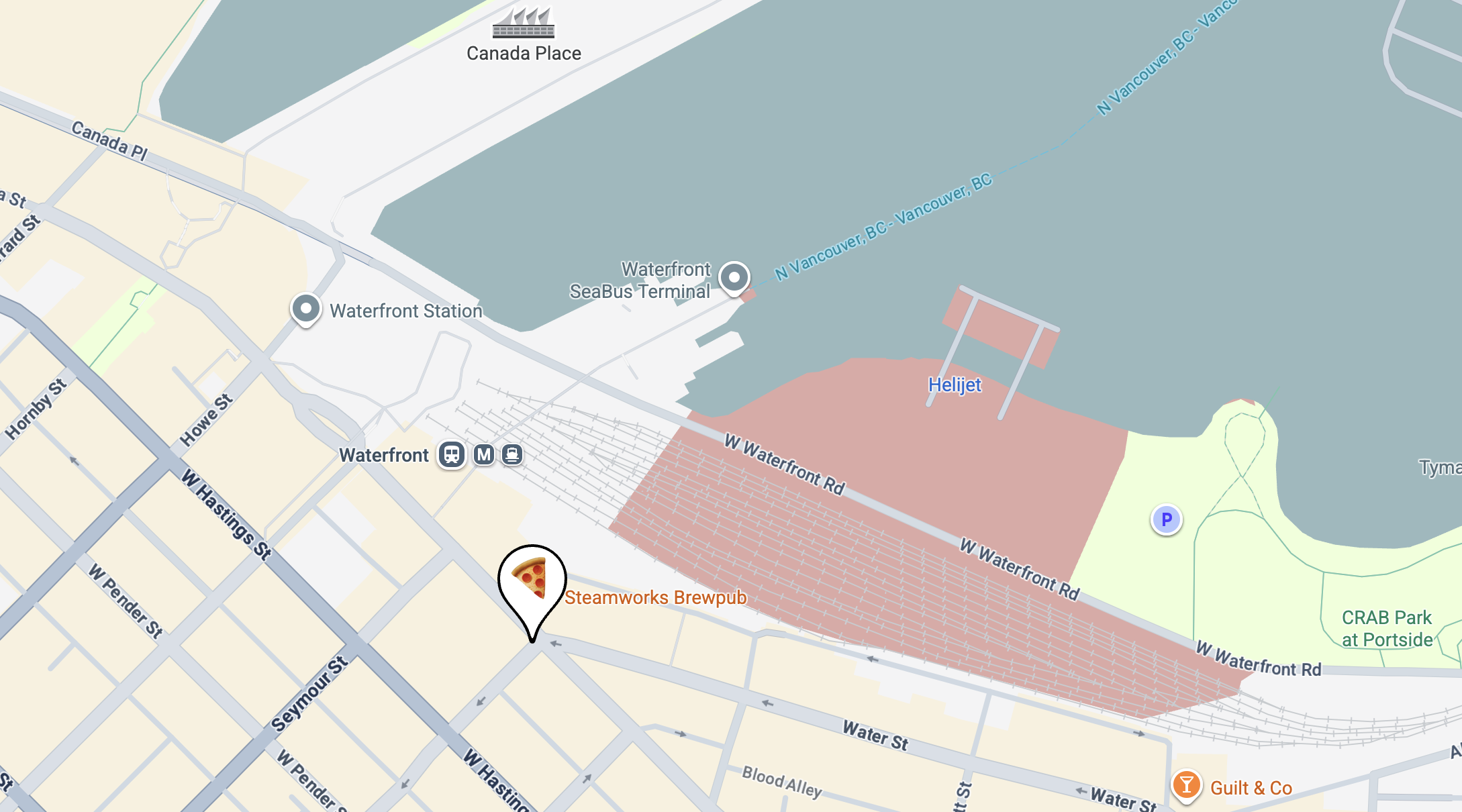
glyph lets you replace the default dot with a string, letter, number, or emoji e.g. glyph='🍕' gives you the marker icon below.
scale increases or decreases the size of the pin.
Using PNG or SVG files as a Google Map custom marker
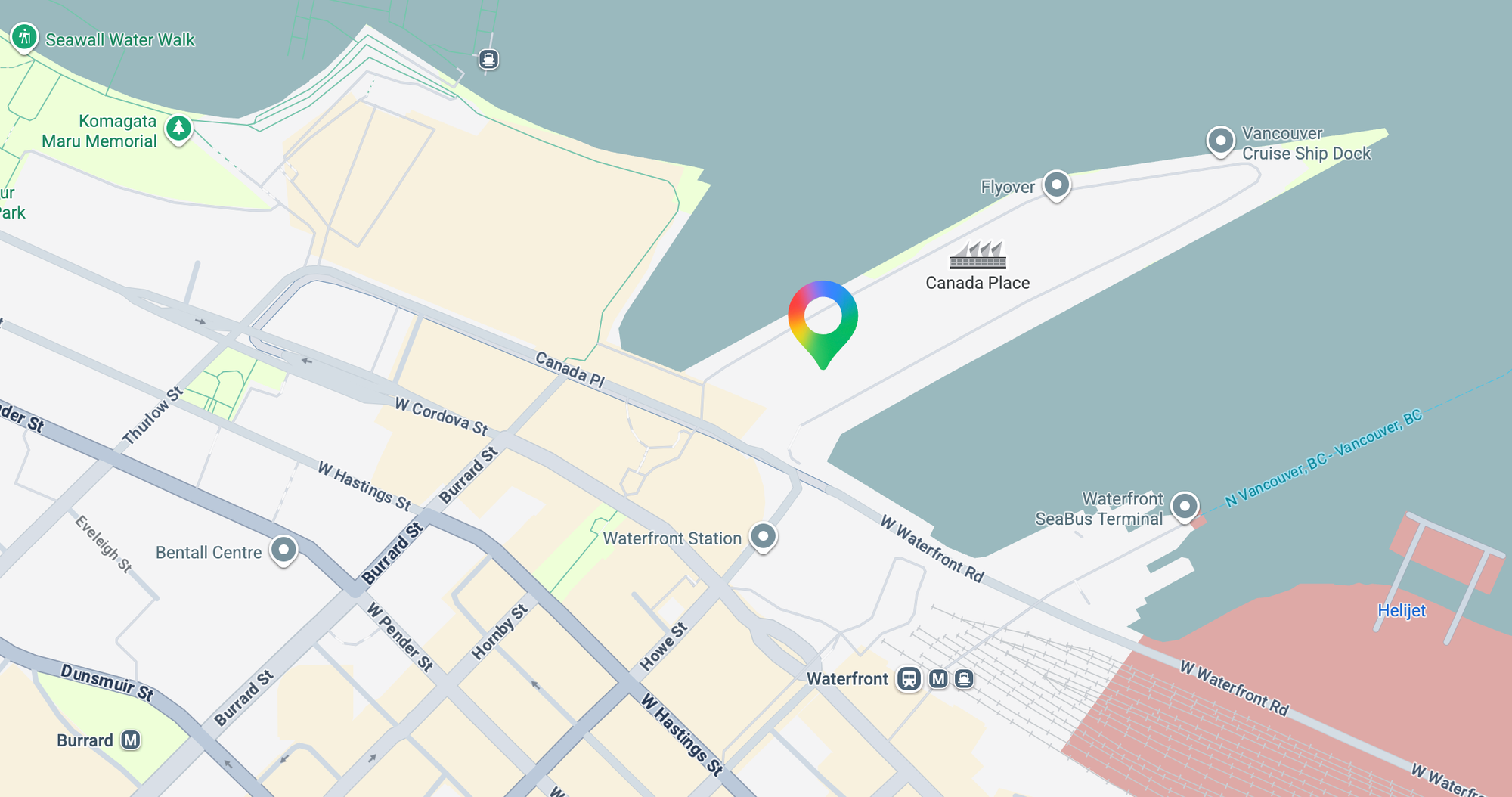
The last way to customize a Google Maps <AdvancedMarker/> component is by embedding a Portable Network Graphic (PNG) or Scalable Vector Graphic (SVG) file into an <img/> tag. For example, lets say we want to use the new 2026 Google Maps logo as a map marker.
First, download the SVG version of the logo and save it in the /assets folder of your project.
.svg?ref=blog.afi.io)
Second, import it into App.jsx with this line:
import markerIcon from './assets/gmp-new-logo-2026.svg';
Third, add an <img/> tag with the the SVG as its source file and add it as a child of <AdvancedMarker/>.
<AdvancedMarker
  position={{ lat: 49.288086, lng: -123.112776 }}
  title={"Canada Place"}
>
  <img src={markerIcon} width={80} height={80} />
</AdvancedMarker>
What you've learned
In this tutorial, I've shown you how to customize map markers using the Google Maps React component library and use them to make your maps useful, interactive and fun! In the next one, I'll show you how to add shapes to a Google Map that you can use to highlight areas of interest or show routes and paths returned by other Google Maps APIs such as the Routes API or GMPRO.
👋 As always, if you have any questions or suggestions for me, please reach out or say hello on LinkedIn.
Next: Part 4: How to draw shapes and polylines on your Google Map in React