
Waze driving directions using the Navigation Connect API
How to use the Navigation Connect API to get turn by turn driving directions in Waze.

In this post, I'll show you how to use the Navigation Connect API to launch Waze for turn-by-turn driving directions and real time tracking. The world's most popular navigation app is of course Google Maps, with around 2 billion monthly active users. Further down the list (fifth or sixth, depending on who's counting) sits Waze, at about 150 million monthly active users and also owned by Google. But in markets like Brazil, Mexico, much of Central America, and parts of Southeast Asia, just as many drivers use Waze as Google Maps, often more. All without the advantage Google Maps enjoys of coming preinstalled on every Android phone
Part 1: Create a Waze and Google Maps deep link using Maps URLs
Part 2: Fleet tracking with the Google Navigation Connect API
Part 3: Waze driving directions using the Navigation Connect API (this article)
What is the Navigation Connect API for Waze?
Just like Navigation Connect for Google Maps, the Navigation Connect API for Waze is a Google Maps Platform web service that links a driver's use of the standalone Waze app back to your own backend system. Instead of building navigation into your app, you let the driver navigate in Waze while your platform still receives live trip data throughout the drive. That means you don't have to build in-app navigation, you don't have to build a live tracking backend, and you don't have to drag your drivers out of Waze, the app many of them prefer in the first place.
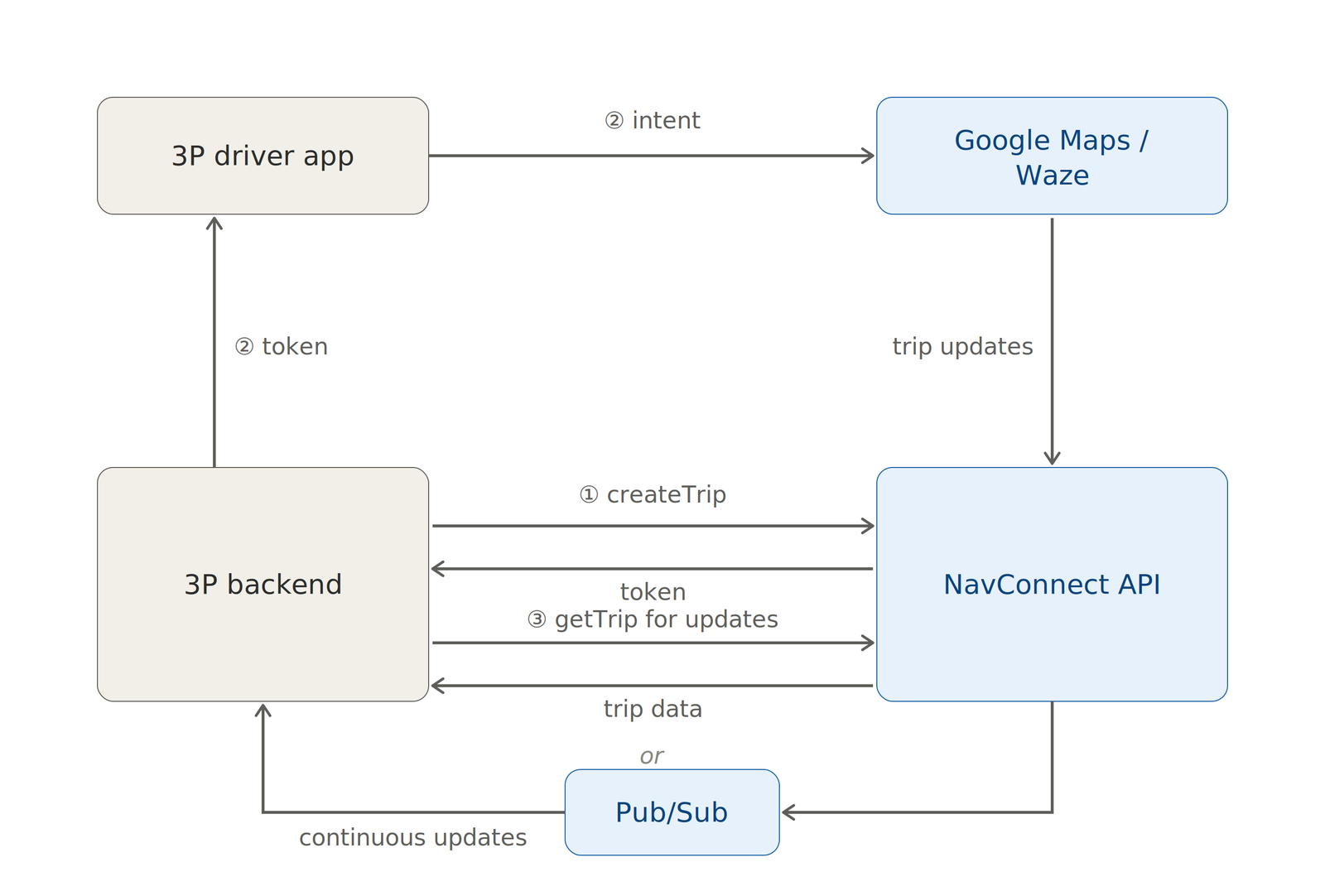
Here's how it works. Your backend creates a trip (1) and receives an authenticated trip token (2a). You use that token to construct a launch URL / deep link, which your app surfaces as a button. The driver taps it (2b) and Google Maps or Waze and starts turn-by-turn navigation. While they're en route, your server receives ongoing real time live location data and traffic aware ETAs by either polling the Navigation Connect API (3) or via Google Cloud Pub/Sub.
Why does the Navigation Connect API support both Google Maps and Waze?
When the Google Maps team was in the early days of building out the Navigation Connect API, one of the key pieces of feedback they got was that many drivers preferred to use Waze over Google Maps.
There are a few reasons for this. First, many drivers consider Waze the superior navigation app. It's laser focused on getting you from A to B with as few distractions as possible. There's no place search and discovery, or transit, cycling, and pedestrian routing to get in the way. Second, Waze users (called Wazers) actively give back to the community, flagging police, accidents, hazards, stopped vehicles, road closures, and speed traps (a feature Google only recently brought to Google Maps). Third, for a long time Waze simply had better road data, especially in developing countries. That's because tens of thousands of unpaid editors worldwide build and maintain the map through the Waze Map Editor (WME): adding roads, fixing turn restrictions, setting lane guidance, and managing closures.
For Navigation Connect to succeed, it had to support Waze as well as Google Maps, especially since Waze is so popular with professional drivers in rideshare and delivery.
Waze Navigation Connect API use cases
Similar to Navigation Connect for Google Maps, Navigation Connect for Waze is a good fit for any company that needs to track point to point trips and share that information both internally with operations teams and externally with customers.
Traditional taxi companies want to share live, traffic aware ETAs and remaining route details with their customers, so they can compete with modern rideshare platforms like Uber and Lyft. The problem is this normally requires the taxi company to build a live tracking backend that accurately tracks each driver's location and an in-app turn-by-turn navigation module (powered by the Navigation SDK or similar) to keep drivers navigating inside the app so that it stays in the foreground and can keep reporting their location. The Navigation Connect API gives the taxi company these features out of the box, so there's no need to spend time and money building a best in class live tracking and navigation system from scratch.
On demand delivery platforms like DoorDash and Uber Eats run on slim margins, so efficiency is everything. Every minute a driver spends hunting for the right address, or waiting for a customer to come down and collect their order, is a minute not spent on the next delivery. DoorDash and Uber Eats are billion dollar companies with turn-by-turn navigation and real time fleet tracking already built into their driver apps but many smaller, local delivery platforms, like Slice (local pizzerias), Fantuan (Chinese takeout), and EatStreet (serves independent restaurants in college towns and other underserved markets) don't. The Navigation Connect API is a strong fit for these companies because it can deliver turn-by-turn directions and real time tracking for the part of the trip between the restaurant and the customer's home, at a fraction of the cost of building a full navigation and tracking system from scratch.
Service fleets e.g. pest control services, roadside assistance or landscaping / lawn care companies are ideal candidates for the Navigation Connect API because most of their drivers are independent contractors that drive their own vehicles. The Navigation Connect API is then a lightweight alternative to an expensive on board telematics and fleet management system that comes with installation costs and a monthly per device subscription.
Navigation Connect API with Waze worked example
Let's walk through how a typical driver app uses Navigation Connect. Real Green is scheduling software built specifically for lawn care and landscaping companies. Their software package includes a driver app that routes the landscaper to the customer's home.
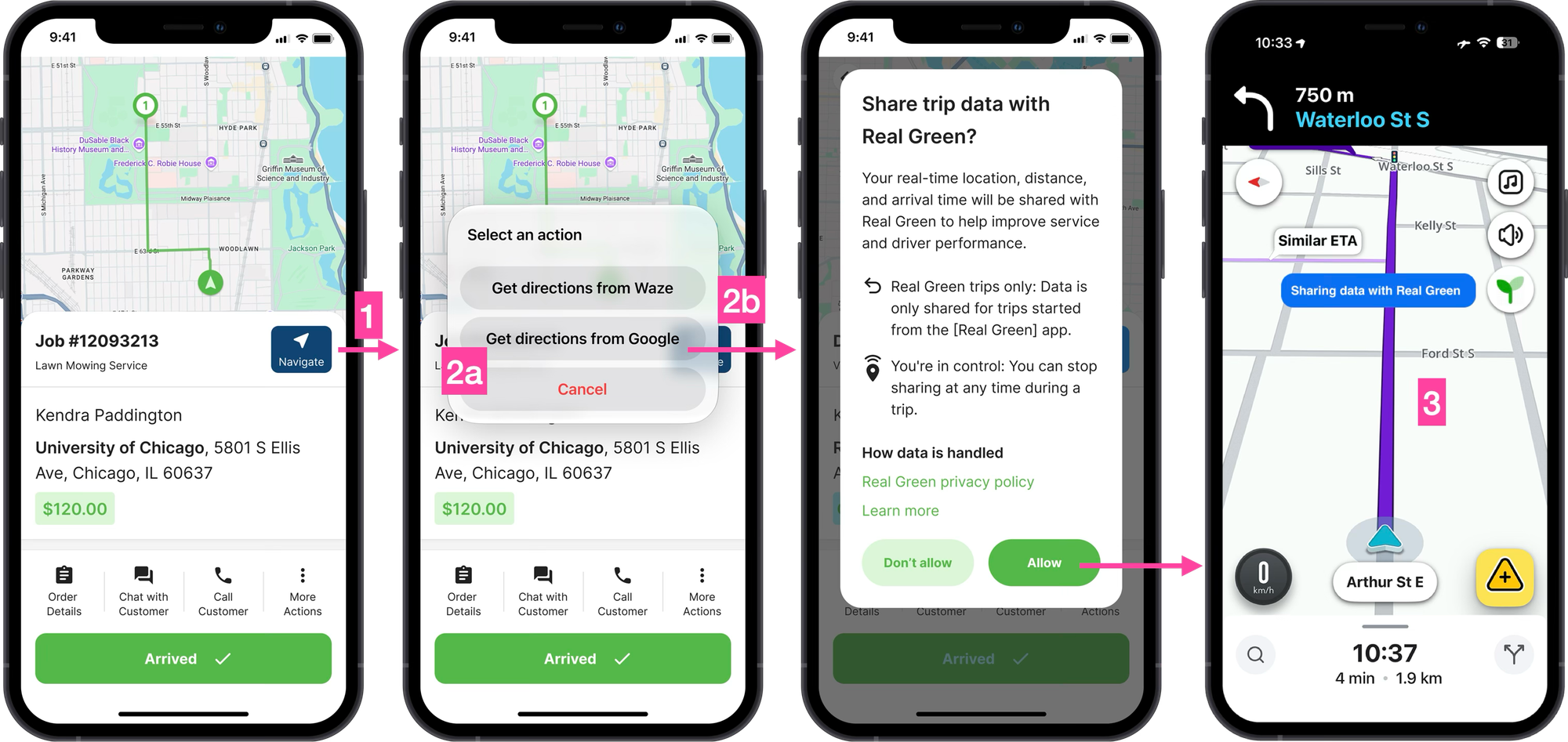
After you enable the Navigation Connect API and set up a service account (see Fleet tracking with the Google Navigation Connect API for instructions on how to do this), here's how you would get Navigation Connect working on the Real Green app.
1. Create a trip and obtain a trip token
When the landscaper is about to start a new job, the app shows a map with their current location (the origin) and the customer's home (the destination). To get turn by turn navigation, they tap the [Navigate] button.
This makes a pass through call to Real Green's backend which in turn calls the Create Trip endpoint of the Navigation Connect API.
Endpoint POST https://navigationconnect.googleapis.com/v1/projects/{PROJECT_ID}/trips?tripId={TRIP_ID}
Headers
Content-Type: application/json
Authorization: Bearer {ACCESS_TOKEN}
Request Body
{
  "androidAppId": "com.realgreen.driver",
  "iosAppId": "io.realgreen.driver",
  "config": {
    "enablePubsub": true,
    "enableRemainingRouteReporting": true
  }
}
One thing to note: there's no origin or destination in this body. The trip's destination goes in the launch URL as the destination parameter (step 2), and the origin is set automatically from the driver's live location when navigation starts.
{PROJECT_ID} is the Google Cloud project ID that has the Navigation Connect API enabled.
{TRIP_ID} is the unique identifier you generate when creating a trip. You create it, not Google. It's also how you retrieve trip updates later. If you use Node, an easy way to do this is by using crypto.randomUUID(), which is built into Node JS.
const { randomUUID } = require("crypto");

const tripId = randomUUID();
{ACCESS_TOKEN} is the short lived OAuth token your service account uses to authenticate with the Navigation Connect API.
Response
{
    "name": "projects/{PROJECT_NUMBER}/trips/{TRIP_ID}",
  "authToken": {
    "token": {NAV_CONNNECT_TOKEN},
    "expireTime": "2026-09-01T08:00Z"
  },
  "state": "NEW",
  "execution": {
    "traveledDistanceMeters": 0,
    "stopAddedInRoute": false
  },
  "createTime": "2026-09-01T06:00:00Z",
  "updateTime": "2026-09-01T06:00:00Z"
}
{PROJECT_NUMBER} is your project's unique numeric identifier. It points to the same Google Cloud project as your alphanumeric Project ID.
{TRIP_ID} is the UUIDv4 trip ID generated by your backend.
{NAV_CONNECT_TOKEN} is the authenticated trip token that the CreateTrip endpoint returns. Your mobile app adds this to the launch URL to start live tracking with turn by turn navigation in Waze.
2. Add the Nav Connect token to a launch URL
To open Waze on the driver's device, append the Nav Connect token created in step 1 to a launch URL.
In iOS, use this URL string as a deep link:
https://waze.com/ul?ll={DESTINATION}&
navigate=yes&
external_trip_token={NAV_CONNECT_TOKEN}
{DESTINATION} is the end location represented as an encoded comma-separated latitude/longitude pair e.g. -33.8569%2C151.2152
{NAV_CONNECT_TOKEN} is the trip token from earlier.
navigate=yes forces the Waze app to start turn by turn navigation right away.
For Android, you should pass the URL string as an intent, which looks like this.
import android.content.Intent
import android.net.Uri
import java.net.URLEncoder

private fun launchWazeNavigation(destination: String, navConnectToken: String) {
    // URL-encode the destination so addresses with spaces/commas survive
    val encodedDestination = URLEncoder.encode(destination, "UTF-8")

    val url = "https://waze.com/ul?q=$encodedDestination" +
        "&navigate=yes" +
        "&external_trip_token=$navConnectToken"

    val intent = Intent(Intent.ACTION_VIEW, Uri.parse(url)).apply {
        // Force Waze specifically (no app chooser)
        setPackage("com.waze")
        // Attribute the session to your registered app — required by Navigation Connect (Android)
        putExtra(Intent.EXTRA_REFERRER_NAME, "android-app://$packageName")
    }

    // Only launch if Waze is installed
    if (intent.resolveActivity(packageManager) != null) {
        startActivity(intent)
    } else {
        // Fall back: open in browser, prompt install, or show an error
    }
}
In the code sample above, $packageName refers to Kotlin's built-in packageName property, which is accessible in Android components like Activities, Fragments, and Services.
This extra step is required only for Android. Adding the packageName to the intent with:
putExtra(Intent.EXTRA_REFERRER_NAME, "android-app://$packageName")tells Nav Connect which app initiated the navigation request.
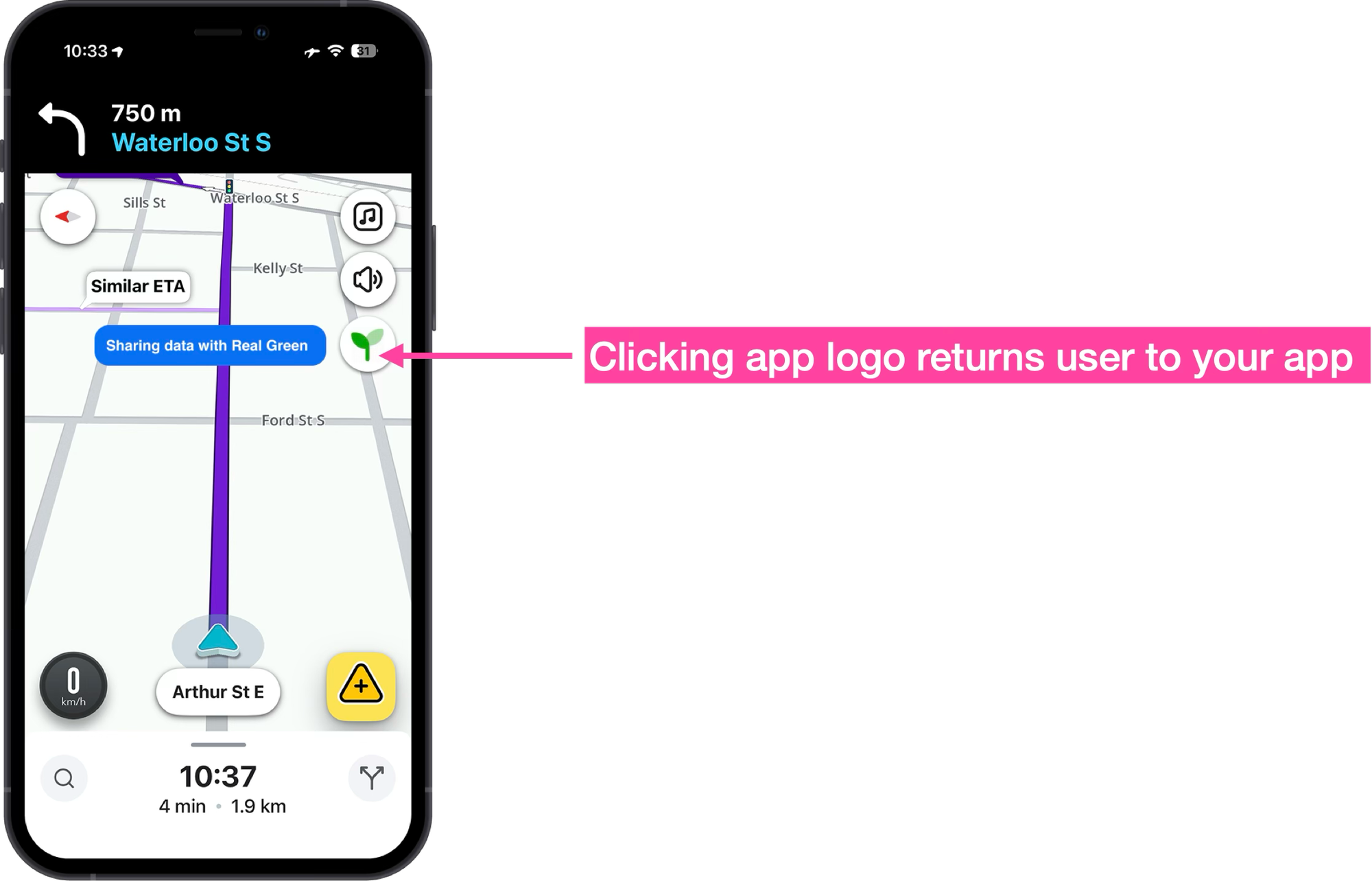
That way, Waze can display a return button on the top right corner that takes the user back to your app during the active trip.
3. Listen for trip updates
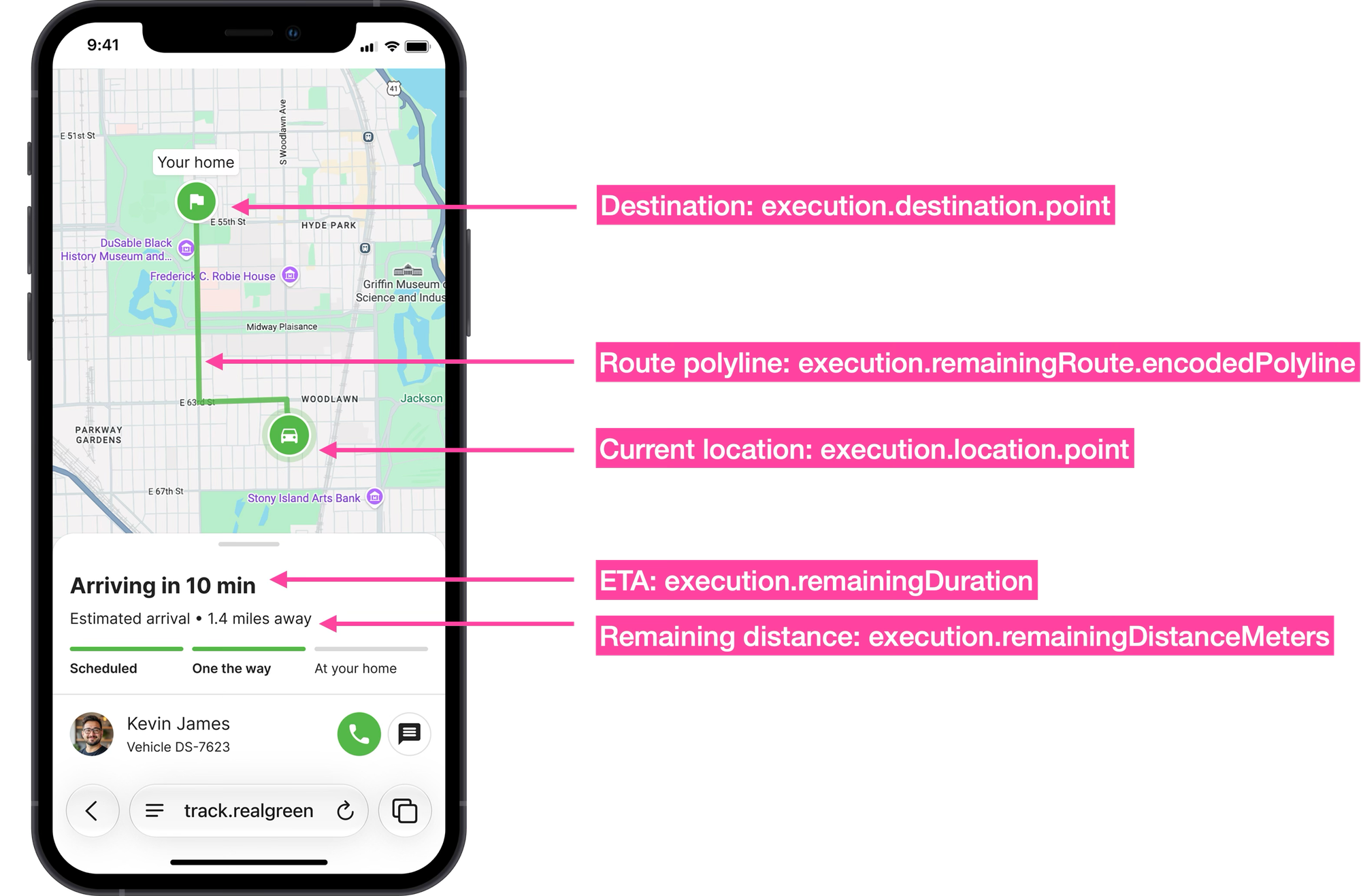
When a trip is ENROUTE (i.e. it has been authenticated and started successfully), you can poll the Get Trip endpoint to fetch the trip's current data. This can be used to build a real time tracking page that lets your customers follow the driver's location and trip progress.
Endpoint: GET
Headers
Content-Type: application/json
Authorization: Bearer {ACCESS_TOKEN}
{PROJECT_ID} is the Google Cloud project ID that has the Navigation Connect API enabled.
{TRIP_ID} is the unique identifier you used to create a trip.
{ACCESS_TOKEN} is the short lived OAuth token your service account uses to authenticate with the Navigation Connect API.
Response
{
  "name": "projects/{PROJECT_NUMBER}/{TRIP_ID}",
  "state": "ENROUTE",
  "execution": {
    "origin": {
      "point": {
        "latitude": 49.2827,
        "longitude": -123.1207
      }
    },
    "destination": {
      "point": {
        "latitude": 50.1163,
        "longitude": -122.9574
      }
    },
    "location": {
      "point": {
        "latitude": 49.2811279,
        "longitude": -123.0297862
      },
      "sourceTime": "2026-08-31T23:01:30-07:00",
      "serverTime": "2026-09-01T06:00:00Z"
    },
    "traveledDuration": "910s",
    "remainingDuration": "1980s",
    "traveledDistanceMeters": 7611,
    "remainingDistanceMeters": 127050,
    "stopAddedInRoute": false
  }
}
name uniquely identifies each trip. It follows this format: projects/{PROJECT_NUMBER}/trips/{TRIP_ID}, where {PROJECT_NUMBER} is your Google Cloud project's numeric ID and {TRIP_ID} is the identifier you assigned to the trip.
state is the current trip status (e.g. "NEW" or "ENROUTE"). There are eight possible statuses in total.
The most valuable part of the response is the TripExecution object (docs). It holds all the real time data regarding the trip's progress, including the driver's current location:
origin: Starting point (latitude/longitude)destination: End point (latitude/longitude)location: Real time vehicle position with:- Current coordinates (
point) sourceTime: When location was captured (in the driver's time zone)serverTime: When server received it (in Google's server time zone)
- Current coordinates (
And remaining distances and durations:
traveledDuration: Time elapsed since trip startremainingDuration: Estimated time to destinationtraveledDistanceMeters: Distance covered so farremainingDistanceMeters: Distance remaining to destination
If you added routePolylineFormat=ENCODED to the Get Trip request, the Navigation Connect API will return the remaining polyline information which you can use in a real time tracking page.
{
  "remainingRoute": {
    "encodedPolyline": "yzxpH~vshVn@Kb@Sd@Yf@a@...",
    "trafficInformation": [
      {
        "startPolylinePointIndex": 0,
        "endPolylinePointIndex": 15,
        "speed": "NORMAL"
      },
      {
        "startPolylinePointIndex": 15,
        "endPolylinePointIndex": 28,
        "speed": "SLOW"
      },
      {
        "startPolylinePointIndex": 28,
        "endPolylinePointIndex": 41,
        "speed": "TRAFFIC_JAM"
      }
    ]
  }
}
What's next for the Navigation Connect API
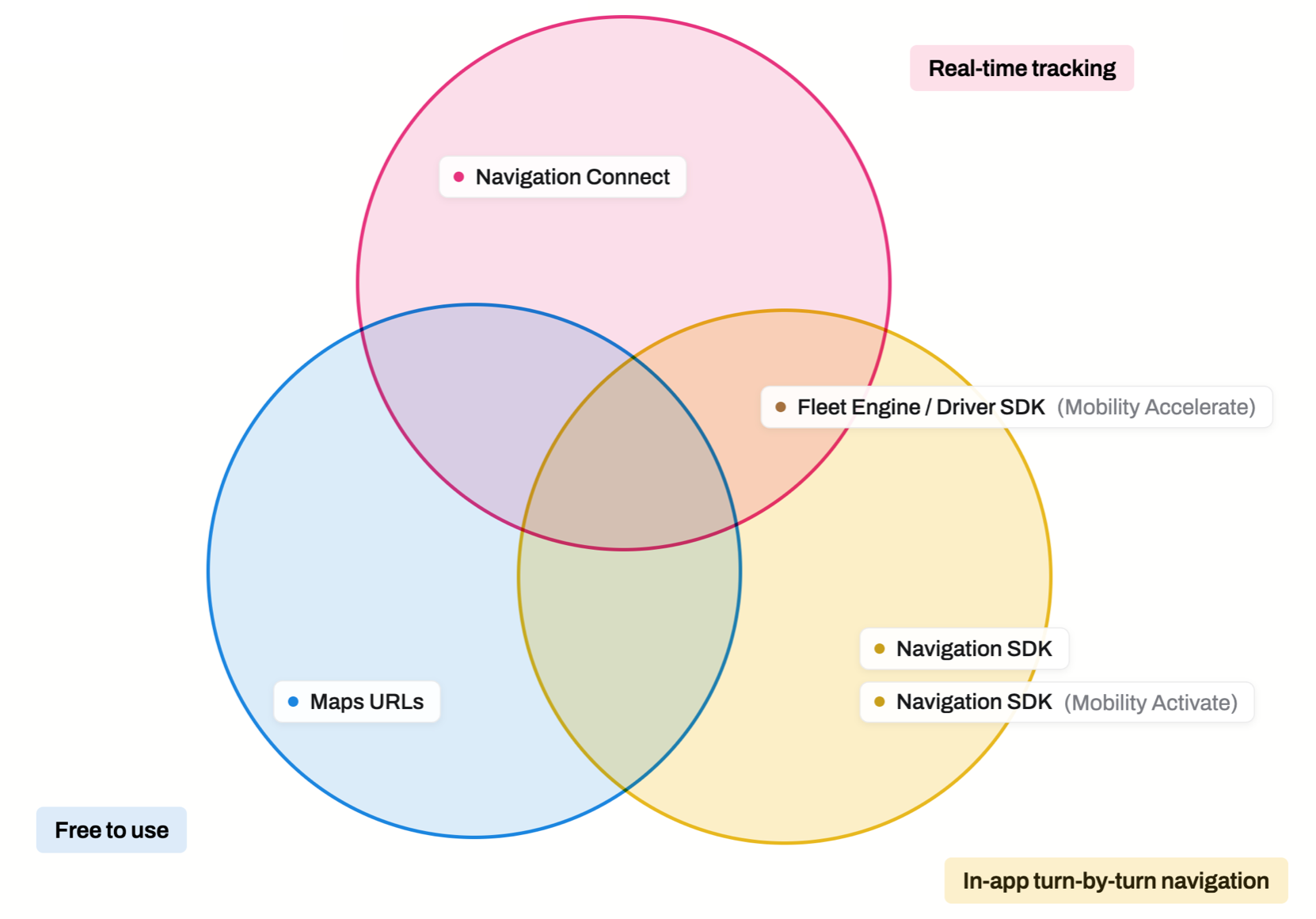
The Navigation Connect API enters an increasingly crowded field. At the start of 2020, Google Maps had exactly zero driver navigation products. The only way to hand a driver turn-by-turn directions from Google was the free Maps URLs deep link. Since then, Google has steadily built out a full product line and as of 2026, there are five options:
- Maps URLs: Free deep links that launch the consumer Google Maps app for directions.
- Navigation SDK (standalone): Embeds turn-by-turn directly in your app at $0.05 per destination.
- Navigation SDK via Google Mobility (Activate plan): The same standalone SDK, but bundled into billable trip pricing instead of charged per destination.
- Fleet Engine / Driver SDK via Google Mobility (Accelerate plan): Lets drivers, passengers, and operators track trips live, the way Uber and Lyft do.
- Navigation Connect (this article): Pricing not yet public, but likely under $0.05 per destination.
Navigation Connect has some key advantages. It's easy to implement (you launch turn-by-turn navigation via simple deep links that work just like Maps URLs), you get reliable continuous telemetry streamed directly to your backend and drivers can use whichever app they prefer. In fact, Navigation Connect is the first Google Maps API product that works with Waze.
The catch is that the market for tracking without in-app navigation is small. Big rideshare and delivery players like Uber, Lyft, and DoorDash build on the Navigation SDK (or an equivalent) for full control over the driver experience. Smaller operators just deep link out with free Maps URLs and skip tracking altogether. That leaves Navigation Connect squeezed between the two. It's out featured by the SDK big players use and undercut on price by the free Maps URLs everyone else is using, losing out to both.
Part 1: Create a Waze and Google Maps deep link using Maps URLs
Part 2: Fleet tracking with the Google Navigation Connect API
Part 3: Waze driving directions using the Navigation Connect API
This article was written by Afi Labs, a Google Maps Premier Partner and reseller. We build route optimization, navigation, and fleet tracking software on Google Maps, and offer volume pricing on GMP licensing. Talk to an engineer or follow Afian on LinkedIn.